watt-is-it
A tiny native macOS menu-bar utility that shows your Mac's real power figures — actual input from the charger, system draw, rated adapter input, and charge surplus — so you can see whether your charger really delivers what it promises.
Why this exists
Most chargers report what they are rated for. macOS repeats that number. Nobody tells you what is actually crossing the cable.
Watt is it? puts the real figure in the menu bar — a bare number, no icon — and reveals the rest when you click: actual input, system draw, rated input, and charge surplus.
The surplus is the one worth watching. Positive means charging. Near zero means the Mac is running entirely off the adapter. Negative means the adapter is losing — the battery is draining while plugged in, and nothing else on the system will tell you that.
Decisions worth naming
- Signed surplus. A negative value stays negative. Clamping it to zero would hide the exact case the tool exists to surface.
- Polling stops on battery. The status item is removed and the one-second timer is torn down, resuming only when macOS reports a power-source change. There is an opt-in discharge-rate mode for people who want it, clearly labelled as costing extra battery.
- One network request. A daily GitHub releases check at midnight UTC, switchable off. No telemetry, no account.
- Numbers only. The menu bar shows the wattage and nothing else, because that is the whole point.
Watt is it?


A tiny native macOS menu-bar utility for seeing what your Mac is really receiving from its charger.




Download
Download Watt is it? for Apple silicon
Quick start
- Download and open the DMG above.
- Drag
WattIsIt.apponto the Applications shortcut, then eject the disk image. - Open it from Applications. The app is unsigned, so macOS will block the first launch: open System Settings → Privacy & Security, click Open Anyway next to Watt is it?, then confirm.
- Connect your Mac to power. The live watt number appears in the menu bar automatically.
- Click the number and use Show in menu bar to choose which watt values you want visible.
Watt is it? runs as a lightweight menu-bar app with no Dock window. While plugged in it shows the live watt number beside the battery; on battery it removes its status item and pauses its one-second power polling to avoid unnecessary work, unless Show discharge rate on battery is enabled.
Example
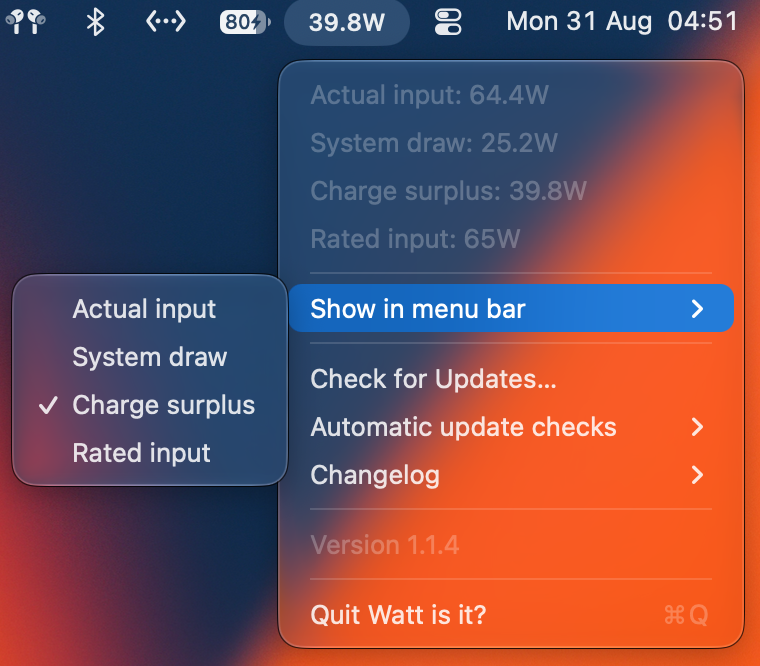
Example menu view with selectable wattage values and the Automatic update checks option.
Features
- Numbers-only menu-bar status item.
- Appears only while external power is connected.
- Live actual input refreshed once per second.
- Click for actual input, system draw, rated input, and charge surplus.
- Native checkmarks for choosing which watt values appear in the menu bar.
- Signed charge surplus, so negative values remain visible when system draw exceeds the adapter rating.
- By default, polling pauses completely on battery and resumes when macOS reports a power-source change.
- Optional Show discharge rate on battery keeps Watt is it? open while unplugged, showing your Mac’s current discharge rate at a low polling rate (uses a little extra battery).
- Built-in GitHub release updater with a native Check for Updates… menu item.
- Configurable automatic update checks, set to daily at midnight UTC by default or turned off.
- Animated update spinner appears inside the watt status item, to the left of the watt readout during downloads and installation.
- Optional Start at login launches Watt is it? automatically when you log in.
- No telemetry or account; the only network request is the GitHub release check.
Using the menu
Click the watt number to open the native macOS menu:
- The live readouts show actual input, system draw, rated input, and charge surplus.
- Show in menu bar contains native checkmarks for each available watt value. Actual input is enabled by default; additional values can be shown beside it.
- If every value is unchecked, actual input remains visible as a safe fallback.
- Check for Updates… starts an update check immediately.
- Automatic update checks lets you choose Daily at midnight UTC or Off. Manual checks remain available either way.
- Changelog shows the changes included in each app version.
- Start at login toggles whether Watt is it? launches automatically when you log in.
- Show discharge rate on battery keeps Watt is it? open while unplugged and shows the current discharge rate in the menu bar.
- The current version is shown at the bottom of the menu. After an update relaunches, a temporary success message confirms the new version.
- Quit Watt is it? exits the menu-bar app.
Updates
By default, Watt is it? checks the public GitHub releases once a day at 00:00 UTC. You can change this under Automatic update checks to turn automatic update checks off; manual checks remain available from the menu. When a newer Apple silicon DMG is available, choose Download & Install to validate, install, and relaunch the app automatically.
The scheduler targets the next midnight in UTC. If the Mac is asleep or the app was closed at that time, the check catches up the next time the app is running. Only published GitHub releases are installed; a commit pushed to main becomes an update after it is packaged and released.
During download and installation, an animated spinner appears to the left of the watt readout. The updater accepts only the app’s Apple silicon DMG, checks its bundle identity and code signature, then relaunches Watt is it? from Applications. Open the installed app from Applications before using in-app updates; updates cannot replace an app running directly from a mounted DMG.
Changelog
1.1.6
- Fixes the menu-bar status item being hidden after upgrading from a version that used a separate spinner item.
1.1.5
- Keeps the update spinner inside the existing wattage status item instead of creating a second menu-bar icon.
- Updates the README example image to the current menu layout.
1.1.4
- Automatic release checks now run once a day at midnight UTC by default.
- Adds an option to turn automatic checks off while keeping manual checks available.
1.1.3
- Shows an animated loading indicator to the left of the watt readout while an update downloads or installs.
1.1.2
- Adds the current version number at the bottom of the status menu.
- Shows a temporary successful-update message after an automatic update relaunches.
- Adds an in-app changelog submenu.
1.1.1
- Automatic GitHub release checks now run once every 7 days.
What the numbers mean
| Value | Meaning |
|---|---|
| Actual input | Power currently entering the Mac, from SystemPowerIn. |
| System draw | Current Mac system draw, from SystemLoad. |
| Rated input | The adapter’s advertised wattage. |
| Charge surplus | Rated input - System draw; negative values mean the Mac is drawing more than the adapter rating. |
The default status item shows only actual input, so it stays compact. Add the other values only if you want them.
Power behavior and compatibility
Watt is it? reads the AppleSmartBattery service exposed by macOS through IOKit. It uses the system’s power telemetry when available and falls back to input voltage × input current for actual input on compatible hardware.
- The menu-bar status item is hidden when no external power source is connected.
- Power polling stops on battery and resumes when macOS sends a power-source notification.
- If macOS does not expose an AppleSmartBattery service, the app stays hidden because there is no reliable wattage source to display.
- Wattage values are rounded to whole watts when sufficiently close to an integer; otherwise one decimal place is shown.
Privacy and signing
There is no account, analytics, telemetry, or background service. The app makes a network request only when checking the public GitHub releases API and downloads an update only after you choose Download & Install.
Releases are unsigned, so macOS shows a one-time warning before the first launch. Approve it in System Settings → Privacy & Security → Open Anyway, or Control-click the app and choose Open, as described in Quick start.
Requirements
- macOS 14.6 or newer
- Apple silicon Mac
Build from source
./build_app.sh
open build/WattIsIt.app
The script uses the selected Xcode toolchain. If more than one Xcode installation is present, select one explicitly:
DEVELOPER_DIR=/Applications/Xcode.app/Contents/Developer ./build_app.shThe app reads the AppleSmartBattery service provided by macOS through IOKit. On hardware where macOS does not expose a battery service, the status item stays hidden.
Release note
The downloadable build is an arm64 macOS DMG containing the app and an Applications shortcut. It is unsigned, so macOS may require the one-time authorization described above. Update downloads are also arm64 DMGs from the public GitHub releases page.
Support Watt is it?
If this project is useful to you, you can support its maintenance with a coffee:
